Who Gave This Account an Admin Role in Entra ID?
An account has turned up with an admin role in Microsoft Entra ID and nobody remembers granting it. Here is how to see who assigned it, when and from which IP address, and which Global Administrators are permanent.

Follow along live. Open this exact view in the read-only demo while you read. No sign-up needed.
Try It LiveOn this page
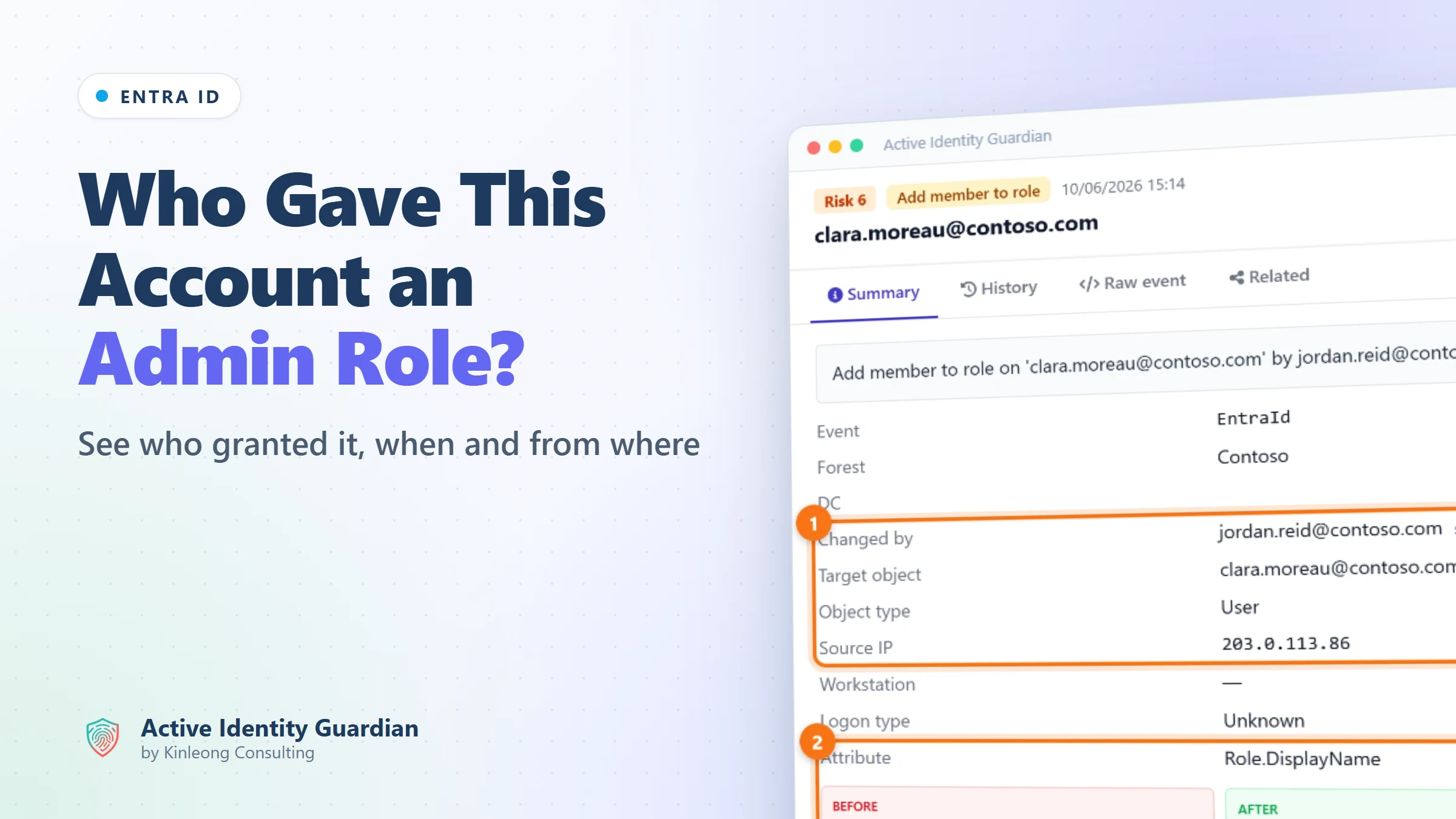
During a routine check you notice that clara.moreau@contoso.com now holds the User Administrator role in Microsoft Entra ID, and nobody on the team remembers granting it. Who assigned the role? When, and from where? And while you are looking, which accounts hold Global Administrator all the time?
Admins ask this on Microsoft Q&A in many forms, from finding out who made a user a Global Administrator to tracking which users were moved into and out of admin roles. Admin roles decide who can change users, apps and security settings across the tenant, so an assignment nobody can explain needs an answer quickly.
Why the built-in tools make this hard
Entra ID does log role assignments, but answering the question later is harder than it should be:
- The record doesn't last. The Entra audit log keeps 7 days of history on the free tier and 30 days with P1 or P2, and upgrading your licence doesn't bring back older entries. A role granted two months ago may have left nothing you can still find there.
- One kind of change, several names. A direct assignment, an assignment through Privileged Identity Management and membership of a role-assignable group are logged as different activities, so a search for one misses the others.
- Nobody is told. Outside Privileged Identity Management, Entra ID doesn't email anyone when an account gets an admin role, and PIM's notifications and alerts need a Microsoft Entra ID P2 or ID Governance licence. Otherwise you have to build the alert yourself.
- Standing access is the default. Microsoft recommends fewer than five Global Administrators, and just-in-time access to admin roles through Privileged Identity Management, which also needs P2. Without it, every assignment is permanent, and finding them all is a manual review.
- On-premises admins are somewhere else. Admin rights in Active Directory are recorded in your domain controllers' logs, not in Entra ID, so an account that is an admin in both shows up in two separate places.
Active Identity Guardian collects the Entra ID audit log into its own audit trail, keeps it for as long as you choose, and checks your admin roles against a set of privileged-role rules. Here is how it looks in the demo.
Find who assigned the role
1Search the audit trail for role assignments
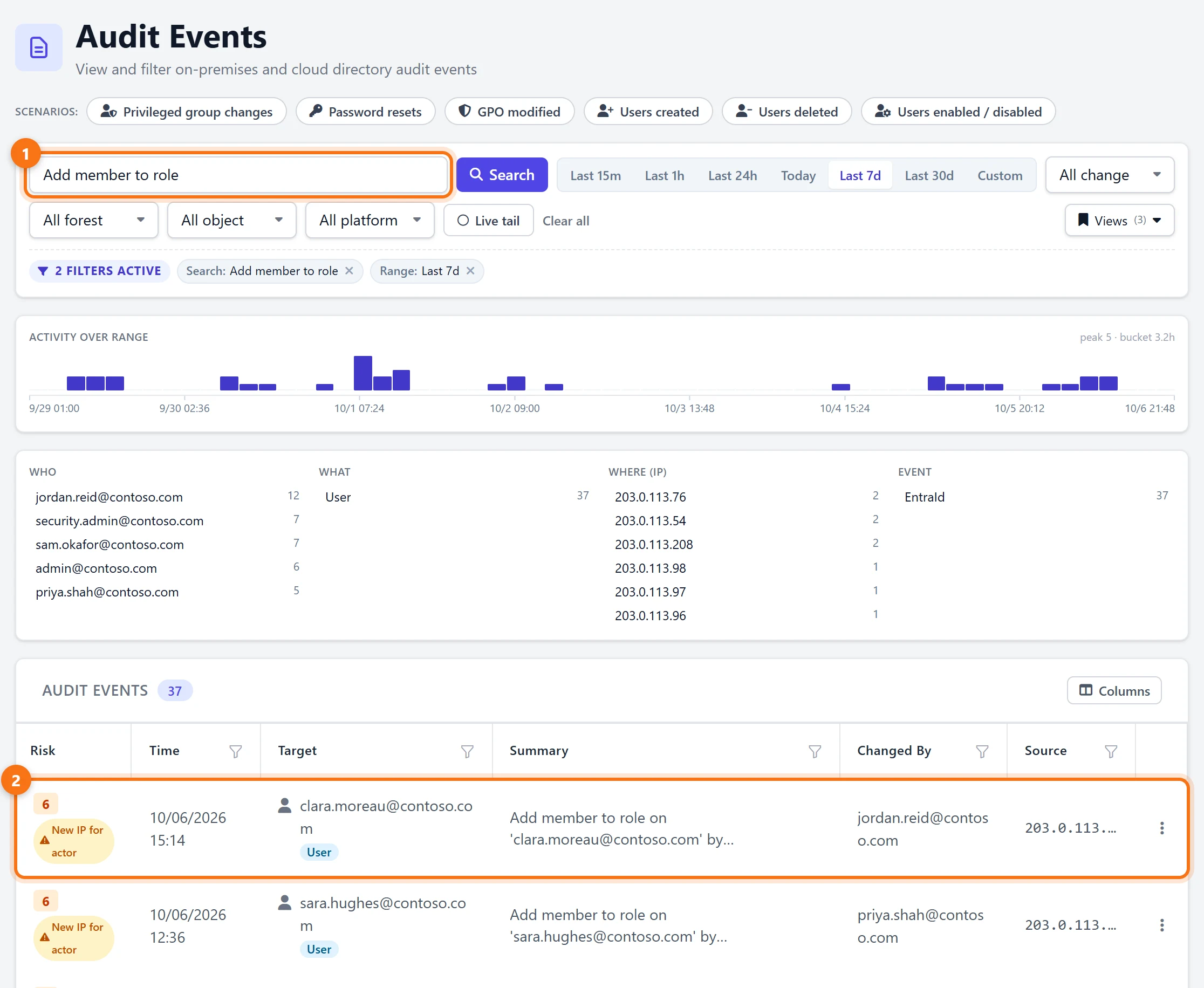
In Audit Events, search for Add member to role. Every Entra ID role assignment in the last 7 days is listed, newest first, with the account that received the role, who assigned it and the IP address they used. The demo has 37 this week, and the panels above the list show who has been assigning roles most often.
2Open the assignment
Click the row. The summary shows who made the change, the account that received the role and the IP address the change came from, followed by the role itself: User Administrator. The change is also flagged New IP for actor.
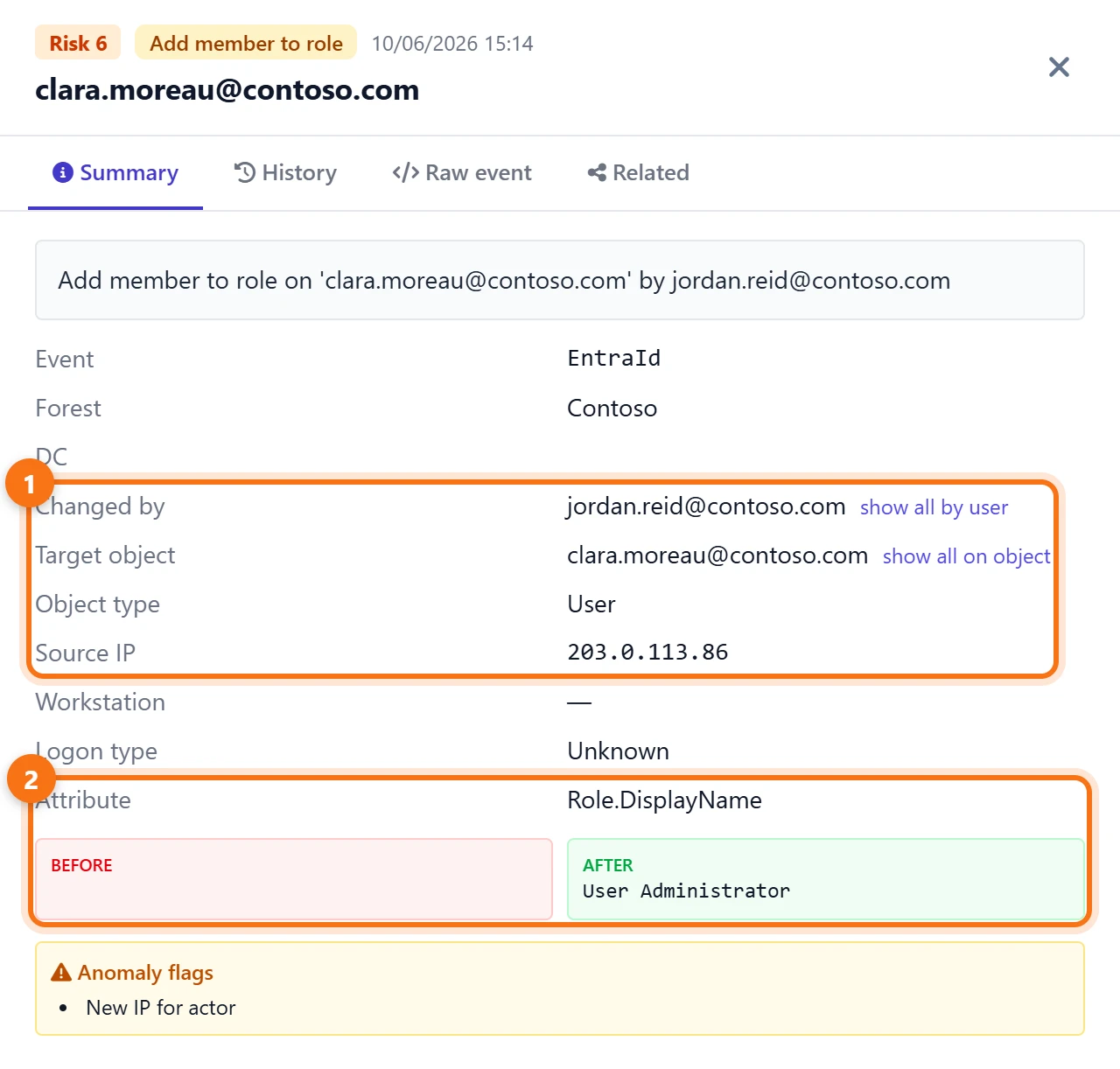
From here, show all by user lists everything else jordan.reid@contoso.com has changed, and History shows every recorded change to clara.moreau's account, so you can see what happened before and after the role arrived.
Find standing Global Administrator access
3Check who is a Global Administrator all the time
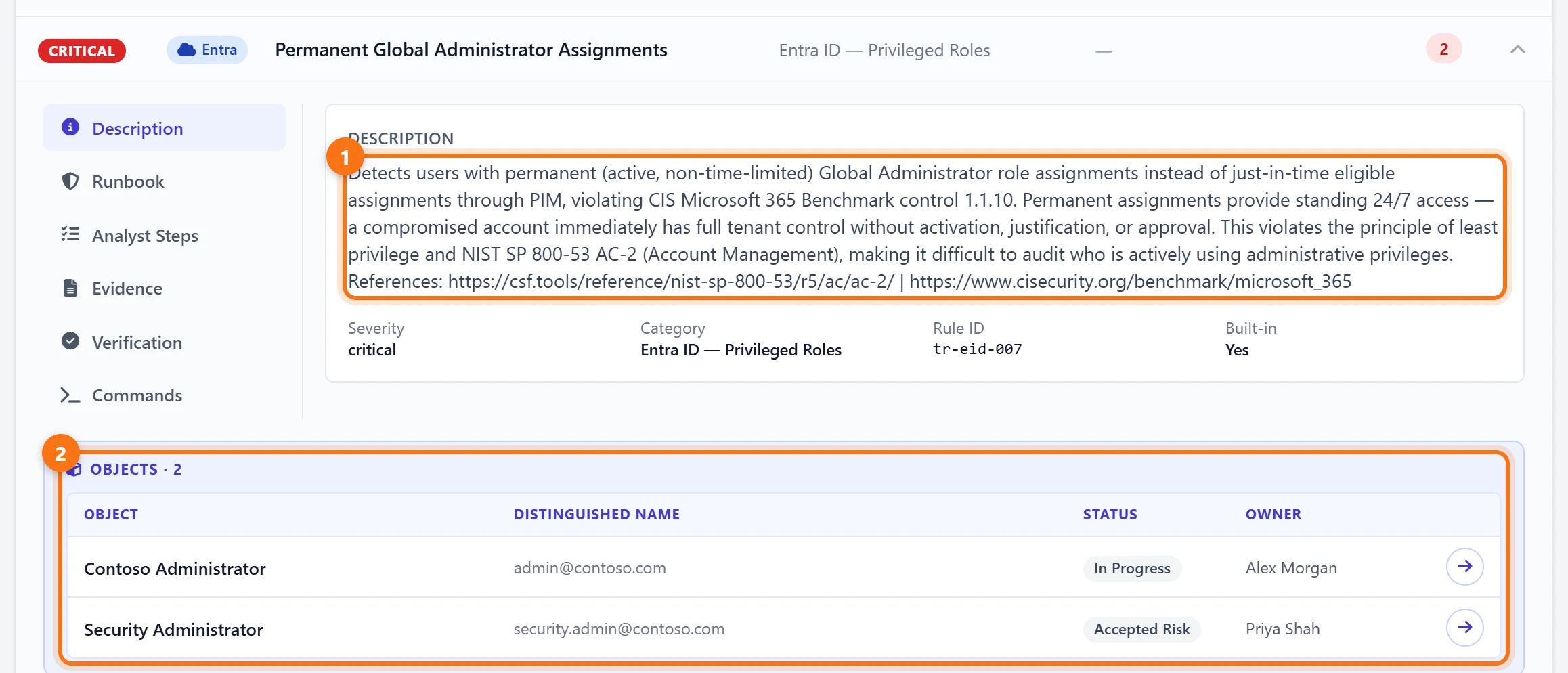
A role assigned today is one question. Who holds the most powerful role permanently is another. In Exposures, the Permanent Global Administrator Assignments rule lists accounts with a permanent, rather than just-in-time, Global Administrator assignment. The demo has two: the Contoso Administrator account, which Alex Morgan is working on, and a Security Administrator account, for which Priya Shah has recorded an accepted risk.
4Review every check on admin roles
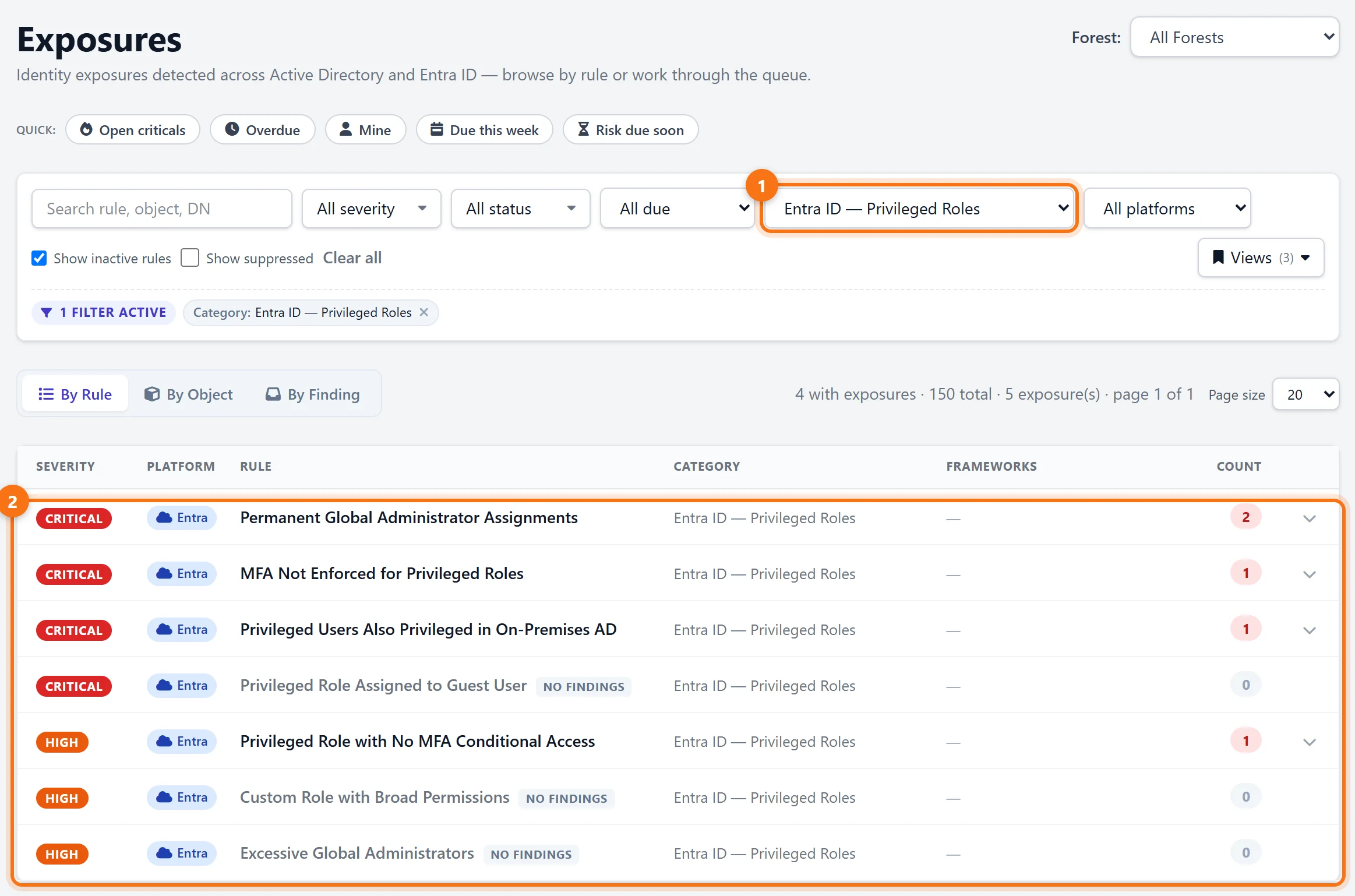
Filter Exposures by the Entra ID — Privileged Roles category to see every check on admin roles together: privileged roles without MFA, admins who are also privileged in on-premises Active Directory, guests with privileged roles, too many Global Administrators and more. Checks with nothing to report are marked No findings, so you can see what was checked as well as what was found.
Get alerted
5Send new findings to email or Teams
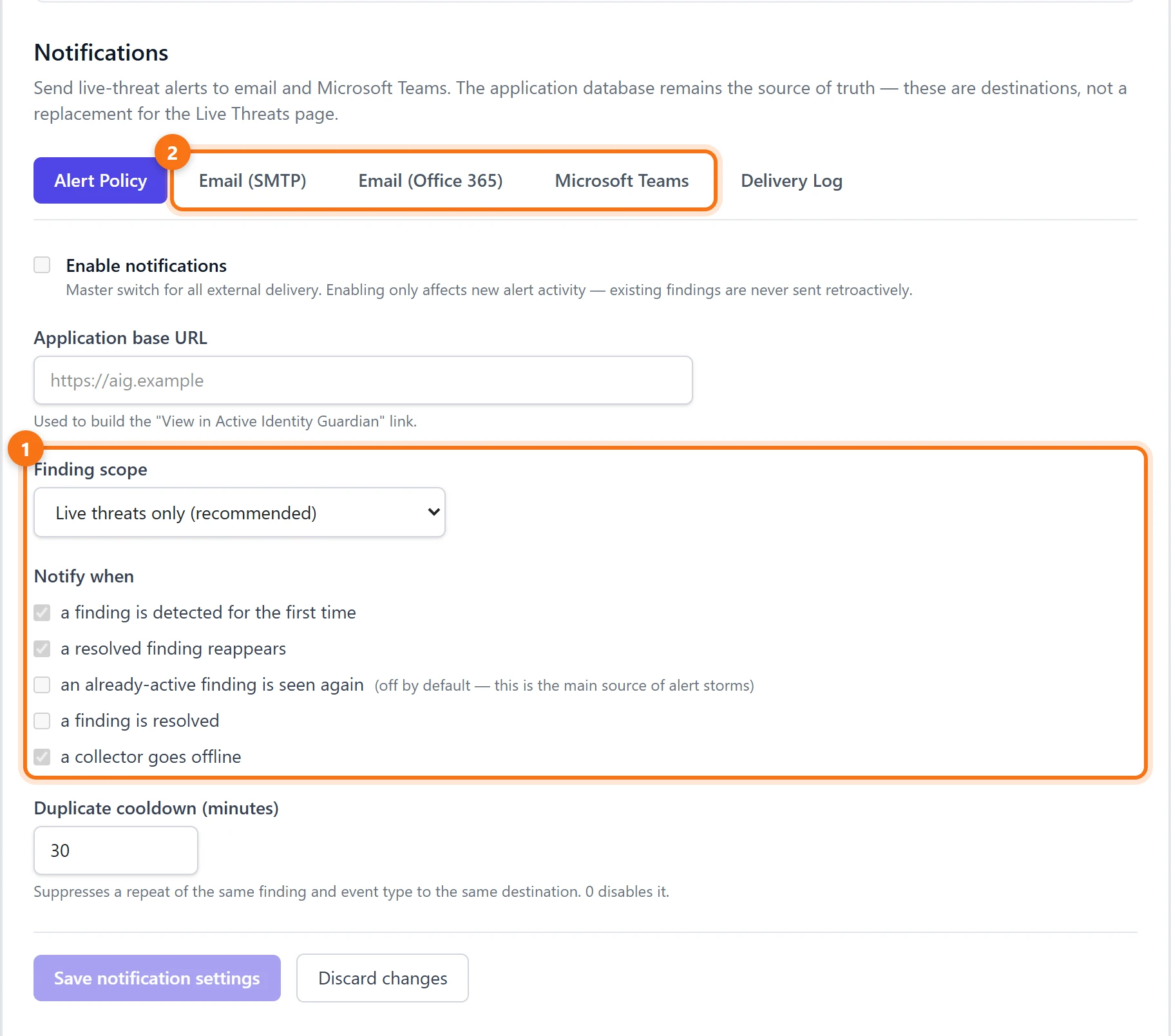
Under Settings > Notifications, set the finding scope to All findings so that new exposures, such as a new permanent Global Administrator or a guest given a privileged role, are sent to email (SMTP or Office 365) or Microsoft Teams.
What to do next
- Confirm the assignment. Ask the admin who made it and check it against a request. You know who, when and from where, so it is a short conversation.
- Remove what nobody can explain. Take the role away and review what the account did while it had it.
- Use the narrowest role that does the job. Most admin tasks need a far more limited role than Global Administrator.
- Keep Global Administrators few. Microsoft recommends assigning the role to fewer than five people, plus emergency access accounts so that you can't be locked out of the tenant.
Summary
- The Entra audit log records role assignments under several activity names and keeps them for 7 or 30 days, and without Privileged Identity Management nobody is emailed about a new admin role.
- Active Identity Guardian keeps every role assignment in its audit trail, with who made it, when and from which IP address, and flags unusual sources.
- Privileged-role rules flag permanent Global Administrators and other risky admin access, each with an owner and a status, and new findings can be sent to email or Microsoft Teams.
Try it yourself
Everything above comes from the Active Identity Guardian demo, which runs on synthetic data and is read-only. Open the same view and click through it, with no sign-up.
Written by