Who Changed This Group Policy, and What Did They Change?
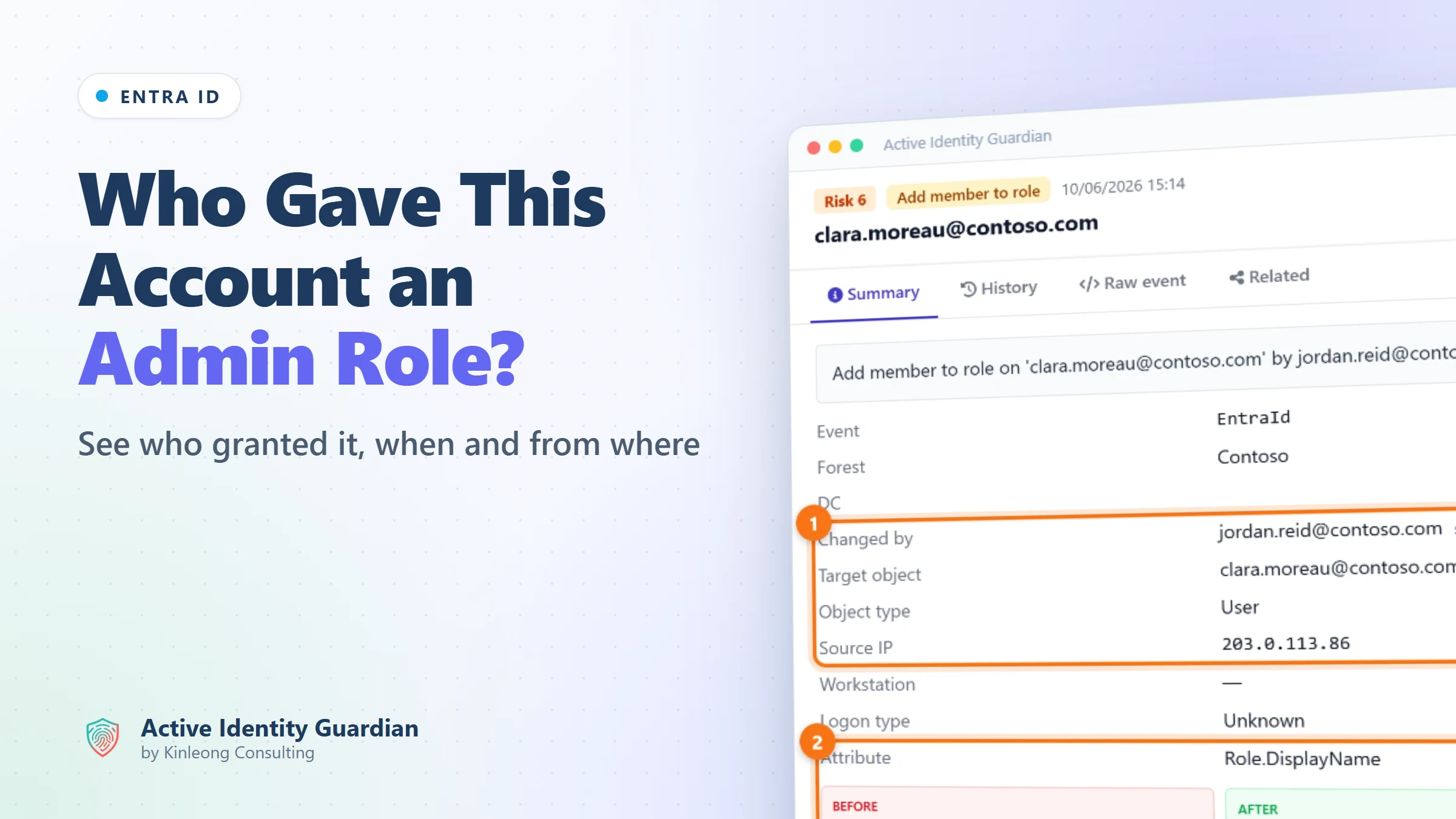
Windows Firewall is suddenly off on your workstations, and a Group Policy change is the likely cause. Here is how to find who changed which GPO, when, from where, and exactly which setting changed.

Follow along live. Open this exact view in the read-only demo while you read. No sign-up needed.
Try It LiveOn this page
On Tuesday morning the service desk notices that Windows Firewall is off on the sales team's laptops. Nobody turned it off by hand. The likely cause is a Group Policy change, but which GPO was it, who made the change and when, and what else did it touch?
Finding out who changed a Group Policy object is one of the oldest questions in Active Directory, and it keeps coming up on Microsoft Q&A, from finding the user who changed a GPO's scope or delegation to auditing Group Policy changes with names instead of GUIDs. A single GPO can reach every computer in an OU, or every domain controller, so one careless or malicious edit can weaken thousands of machines at once.
Why the built-in tools make this hard
Domain controllers can record Group Policy changes, but turning those records into an answer is where it falls apart:
- Nothing is recorded unless auditing is on. Directory change auditing, which logs GPO edits, is off by default. Whatever tool you use, it has to be switched on first.
- The event names the GPO by its GUID. A change is logged against a distinguished name such as
CN={31B2F340-016D-11D2-945F-00C04FB984F9},CN=Policies,CN=System,…, not against Default Domain Policy, so you first have to work out which GPO that is. - It doesn't say which setting changed. Most Group Policy settings are files in SYSVOL, so the directory event mainly shows the GPO's version number going up. A new screen saver timeout and a disabled firewall look the same.
- There's no history to compare with. Seeing what a setting was last week means having a backup or a report from last week. Version history and rollback were what Advanced Group Policy Management (AGPM) added, and Microsoft's support for AGPM 4.0 ended on 14 April 2026.
- The evidence is scattered and short-lived. The change is logged only on the domain controller that handled it, and the Security log overwrites its oldest events when it fills up.
- Nobody is told. Windows doesn't raise an alert when a GPO changes, so a firewall switched off at 09:30 can stay off for weeks before anyone notices.
With directory change auditing on, Active Identity Guardian records every GPO change from your domain controllers under the GPO's name, and compares the GPO's settings before and after, so each change says what it did. Here is the firewall case in the demo.
Find who changed the GPO
1See every GPO change in one list
Open Audit Events and click the GPO modified scenario. Every Group Policy change from every domain controller in both forests appears in one list, newest first, with the GPO's name, who changed it, the workstation they used and the domain controller that recorded it.
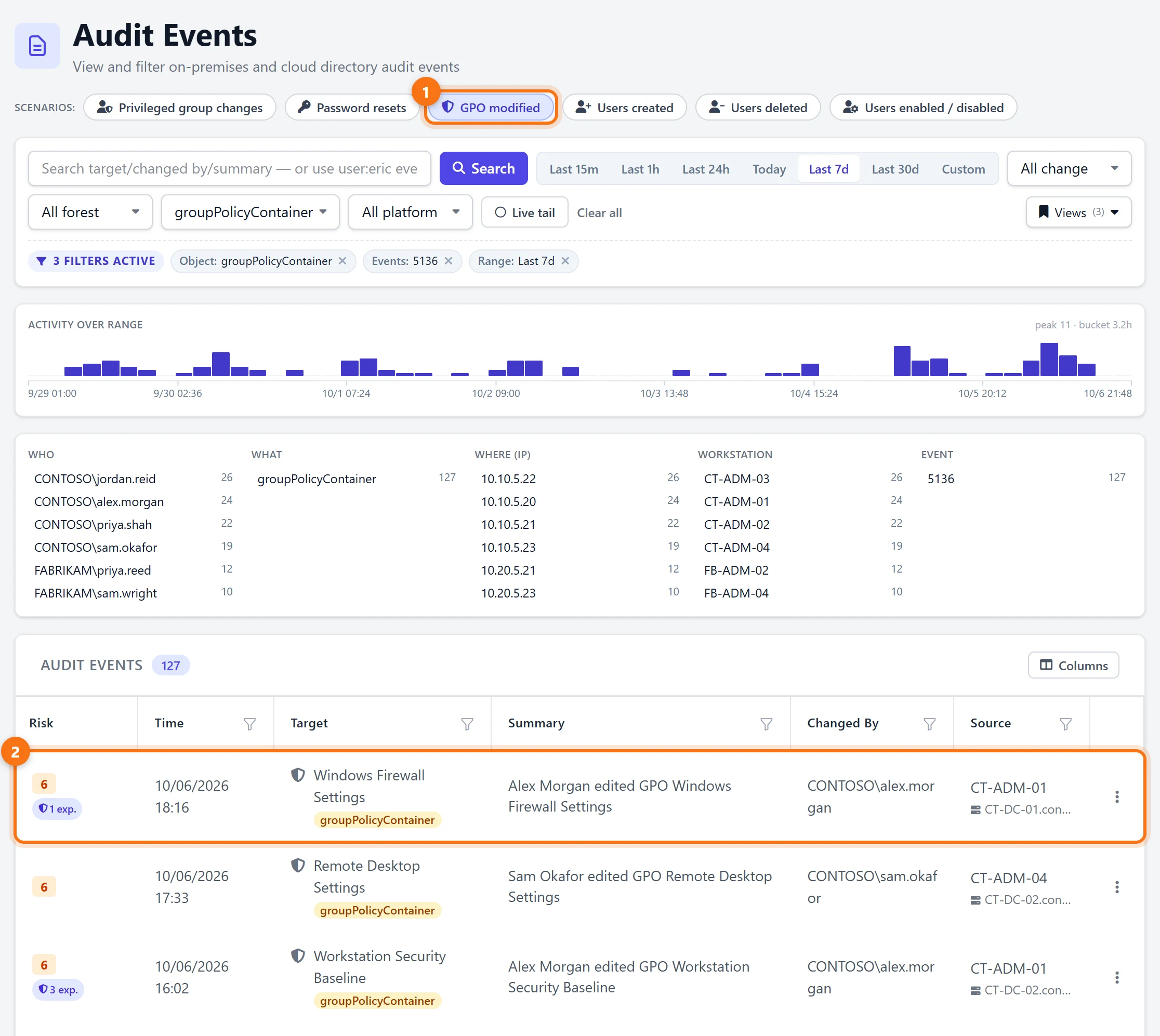
In the demo, admins in two forests made more than a hundred GPO changes this week, and most of them say only that a GPO was edited. To find the one that matters, narrow the list down.
2Search for the GPO
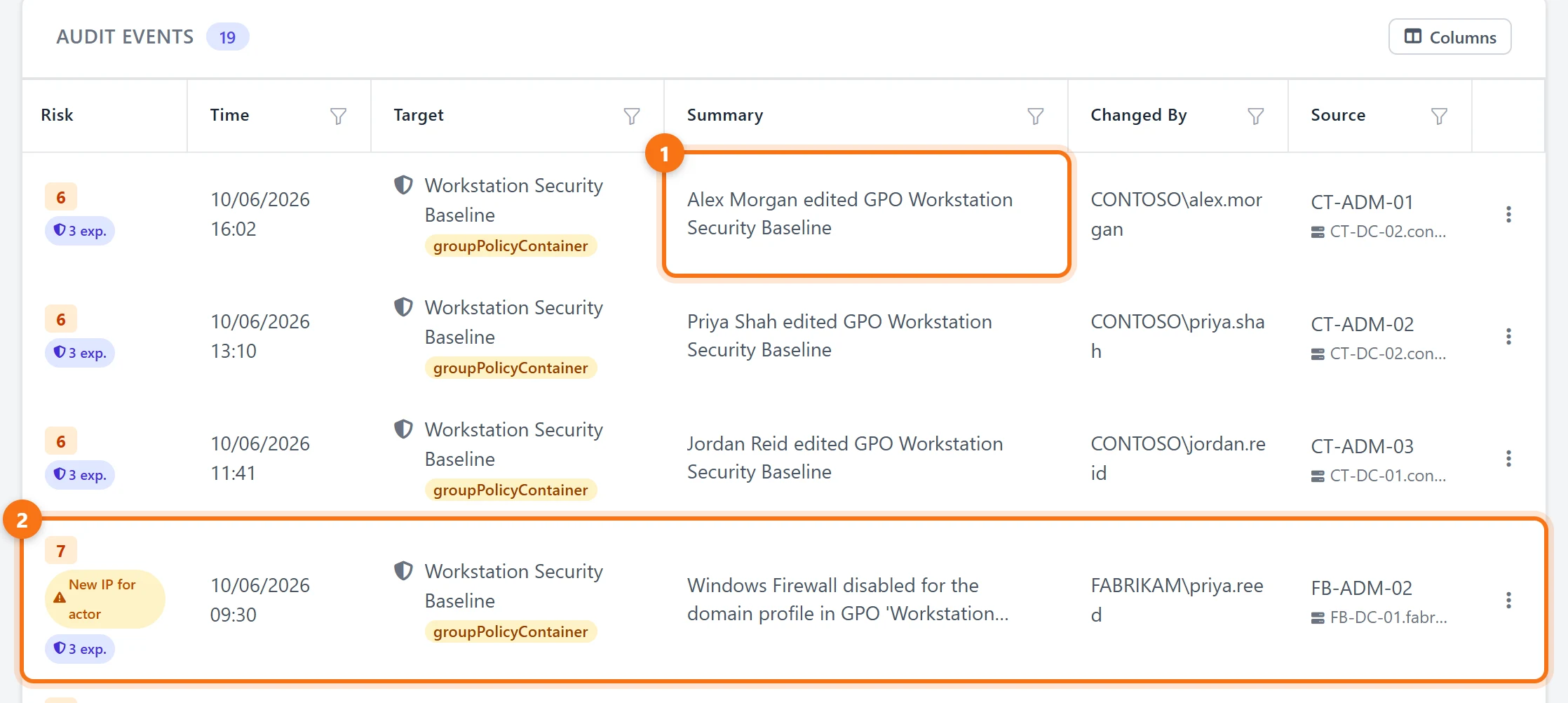
Search for the GPO by name, here Workstation Security Baseline, and its changes are listed together. Most are routine edits, but the one at 09:30 today is different, because its summary says exactly what changed: Windows Firewall was turned off for the domain profile. It was made by FABRIKAM\priya.reed from workstation FB-ADM-02, and it is flagged New IP for actor, because that admin had not made changes from that IP address before.
3Open the change to see the setting
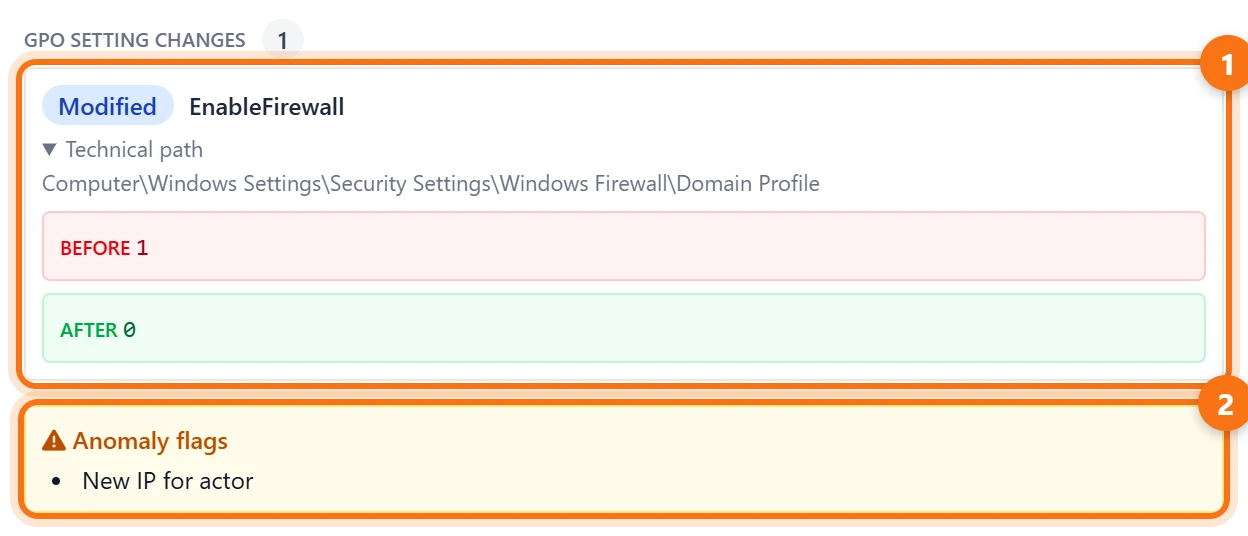
Click the change. Under GPO setting changes, the setting is shown with its path, Computer\Windows Settings\Security Settings\Windows Firewall\Domain Profile, and its value before and after: EnableFirewall went from 1 to 0. Active Identity Guardian keeps a snapshot of each GPO and compares it with the previous one, so you see the setting itself, not just a new version number.
See the risk the change created
4Find it already raised as a live threat
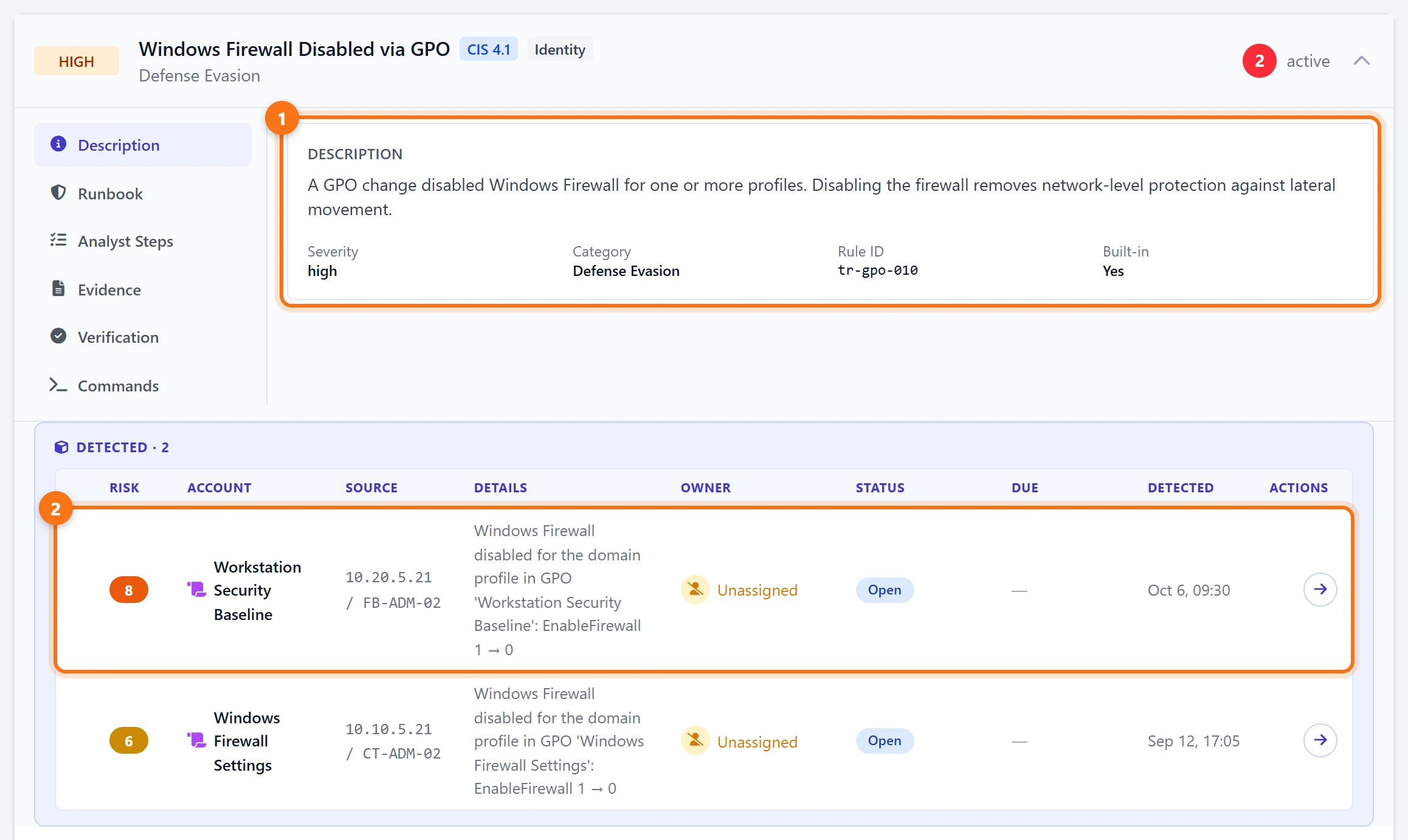
You didn't have to go looking. Turning off the firewall in a GPO is one of the security-weakening Group Policy changes that Active Identity Guardian raises in Live Threats on its own, alongside others in the demo such as account lockout being switched off, a change to the Default Domain Policy, and a change to which GPOs are linked to an OU.
Get alerted next time
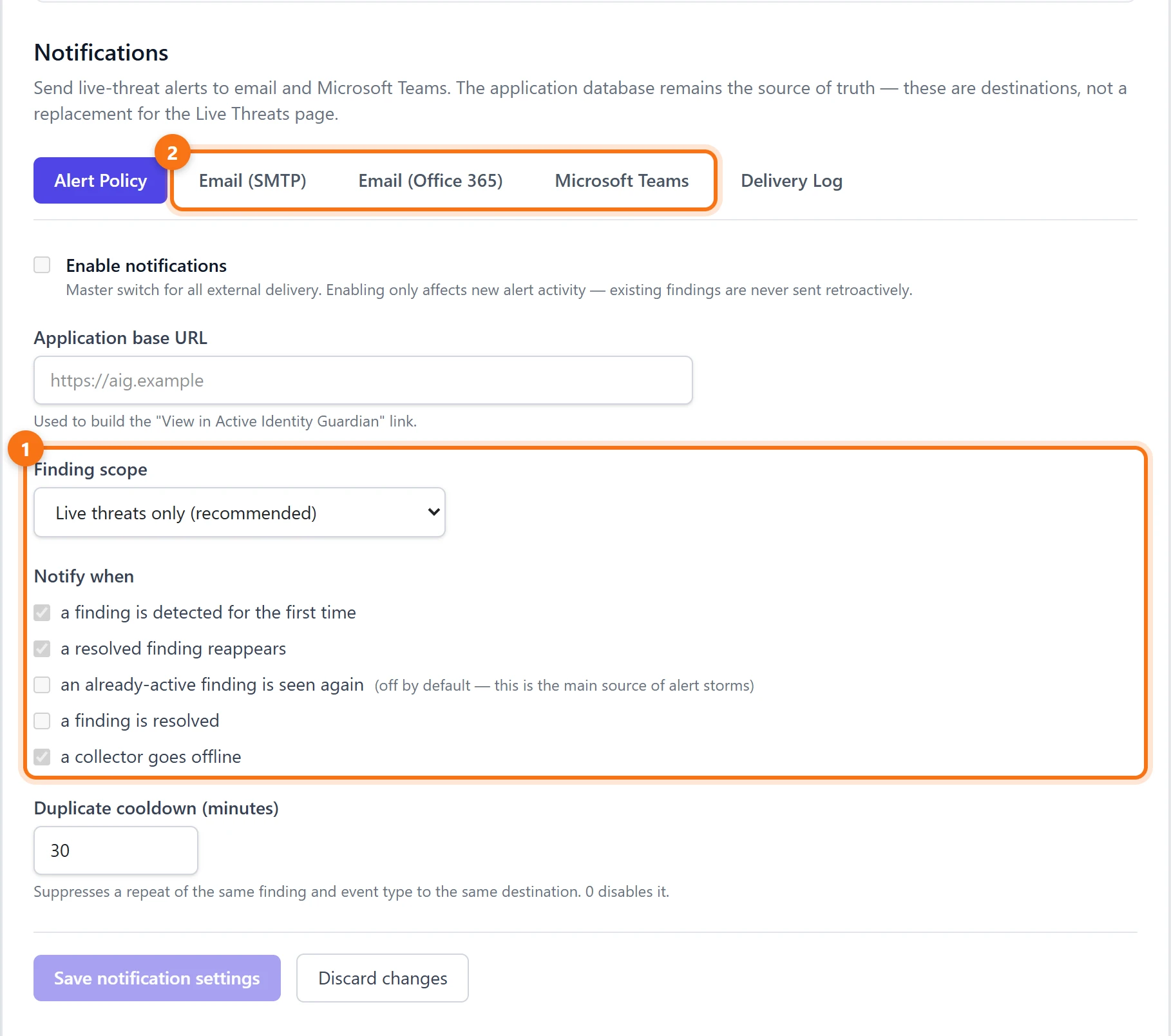
5Send live threats to email or Teams
Under Settings > Notifications, live threats can be sent to email (SMTP or Office 365) and Microsoft Teams. The default finding scope, Live threats only, already includes security-weakening GPO changes, so the next time someone turns off the firewall in a GPO, the team hears about it within minutes instead of weeks.
What to do next
- Confirm the change. Ask the admin who made it, and check it against a change request. You already know which GPO, which setting and from where, so it is a short conversation.
- Put the setting back if it wasn't approved. The value before the change is on screen, so restore it in the GPO and check that computers pick it up at their next policy refresh.
- See what else that admin changed. On the change, show all by user lists everything the same account did, which tells you whether this was a one-off.
- Limit who can edit important GPOs. Fewer editors means fewer surprises, and every remaining change is easier to explain.
Summary
- Once directory change auditing is on, Windows logs a GPO change against the GPO's GUID, mostly as a version number going up, and only on the domain controller that handled it.
- Active Identity Guardian lists every GPO change by name, with who made it, from where, and the setting it changed, before and after.
- Changes that weaken security, such as turning off the firewall, are raised as live threats and can be sent straight to email or Microsoft Teams.
Try it yourself
Everything above comes from the Active Identity Guardian demo, which runs on synthetic data and is read-only. Open the same view and click through it, with no sign-up.
Written by