Who Added This User to Domain Admins? How to Find Out in Seconds
An account has turned up in Domain Admins and nobody remembers adding it. Here is how to see who did it, when, from which machine, and the risk it created, in under a minute.

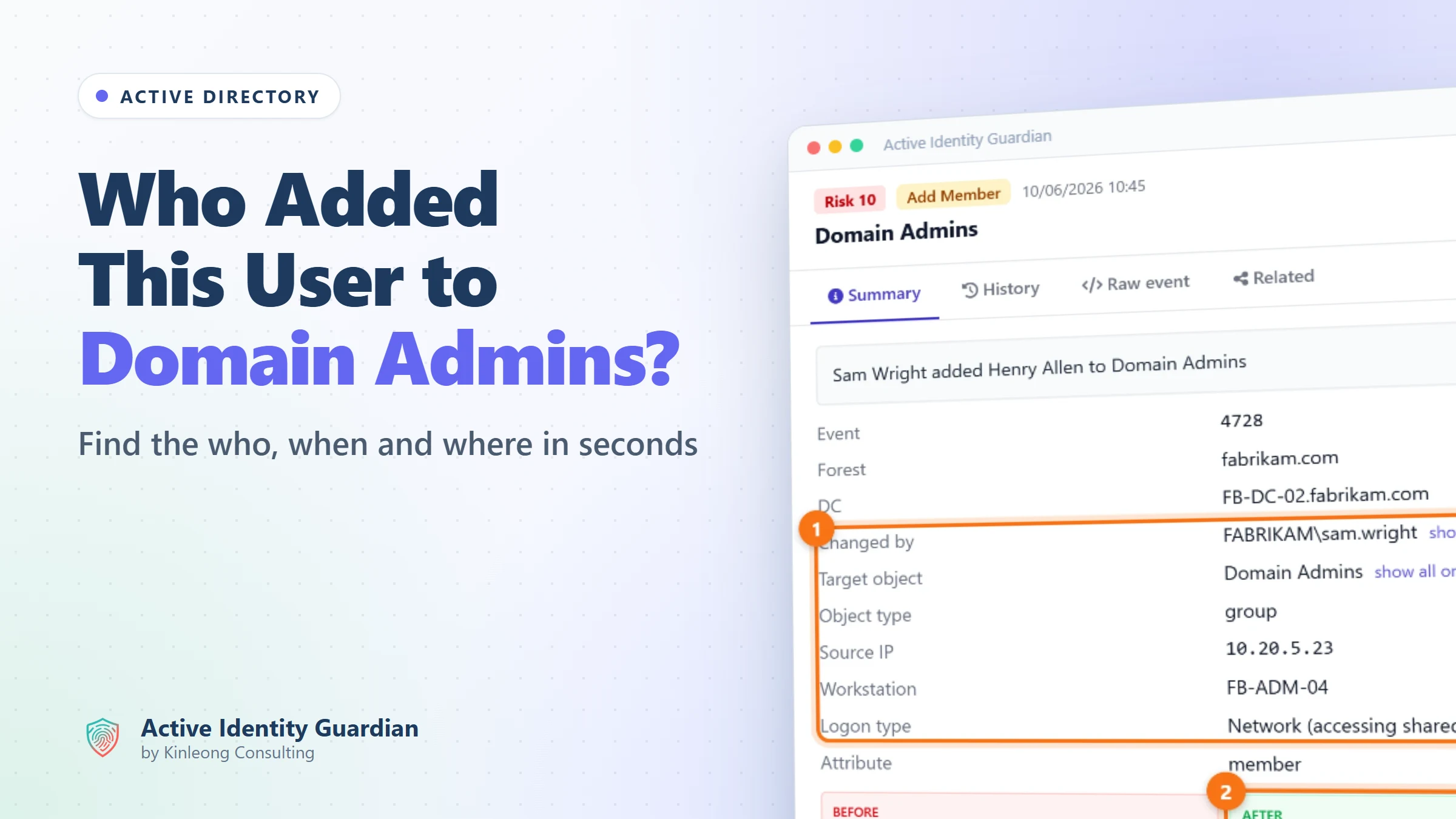
Follow along live. Open this exact view in the read-only demo while you read. No sign-up needed.
Try It LiveOn this page
You open Active Directory Users and Computers and notice an account in Domain Admins that you don't recognise. Today it was Henry Allen, a sales engineer. Nobody on the team remembers adding him, and the questions arrive at once. Who did it? When? From which machine? Was it approved? And what else has that person changed?
It is one of the most common questions Active Directory admins ask, and it keeps coming up on Microsoft Q&A, from getting an email when a privileged group changes to knowing when users are added to a security group. Membership of Domain Admins gives full control of every user, computer, group and policy in the domain, so an unexplained new member is either an honest mistake or the first sign of an attack. Either way, you need the answer in minutes, not after an afternoon of digging.
Why the built-in tools make this hard
Windows does record group membership changes, but turning those records into an answer is where teams get stuck:
- There is no single place to look. The change is written to the Security log of whichever domain controller handled it. With several domain controllers, and often more than one forest, you first have to find the right one.
- The evidence may already be gone. Security logs have a size limit and overwrite their oldest events. On a busy domain controller, last week's change can be overwritten long before anyone goes looking.
- Nothing is captured if auditing is off. Group changes are logged only while the right audit policy is enabled on your domain controllers. If it is off on a domain controller, that domain controller keeps no record of the change.
- Privileged groups don't all log the same event. Domain Admins, Enterprise Admins and the built-in Administrators group record membership changes under different events, so watching for one quietly misses the others.
- You only get half the story. The membership event names the account that made the change, but not the workstation or IP address it came from. Finding the source means matching it to a separate logon event by hand.
- Nobody is told when it happens. Windows does not raise an alert when a privileged group changes. Unless you have built your own alerting, you find out by chance, often weeks later.
- The log doesn't tell you what the change means. It records that a member was added, not that a sales account now controls the whole domain, how many other accounts sit in the same group, or whether this admin has been doing it all week.
Active Identity Guardian collects these changes from your domain controllers continuously, keeps them in one searchable audit trail and checks what each change does to your exposure. Here is the same question, answered in the demo.
Find who added the user to Domain Admins
1Search the audit trail for the group
Open Audit Events and search for Domain Admins over the last 7 days, or click the Privileged group changes scenario. Every change to the group, from every domain controller in every forest, appears in one list with the newest first.
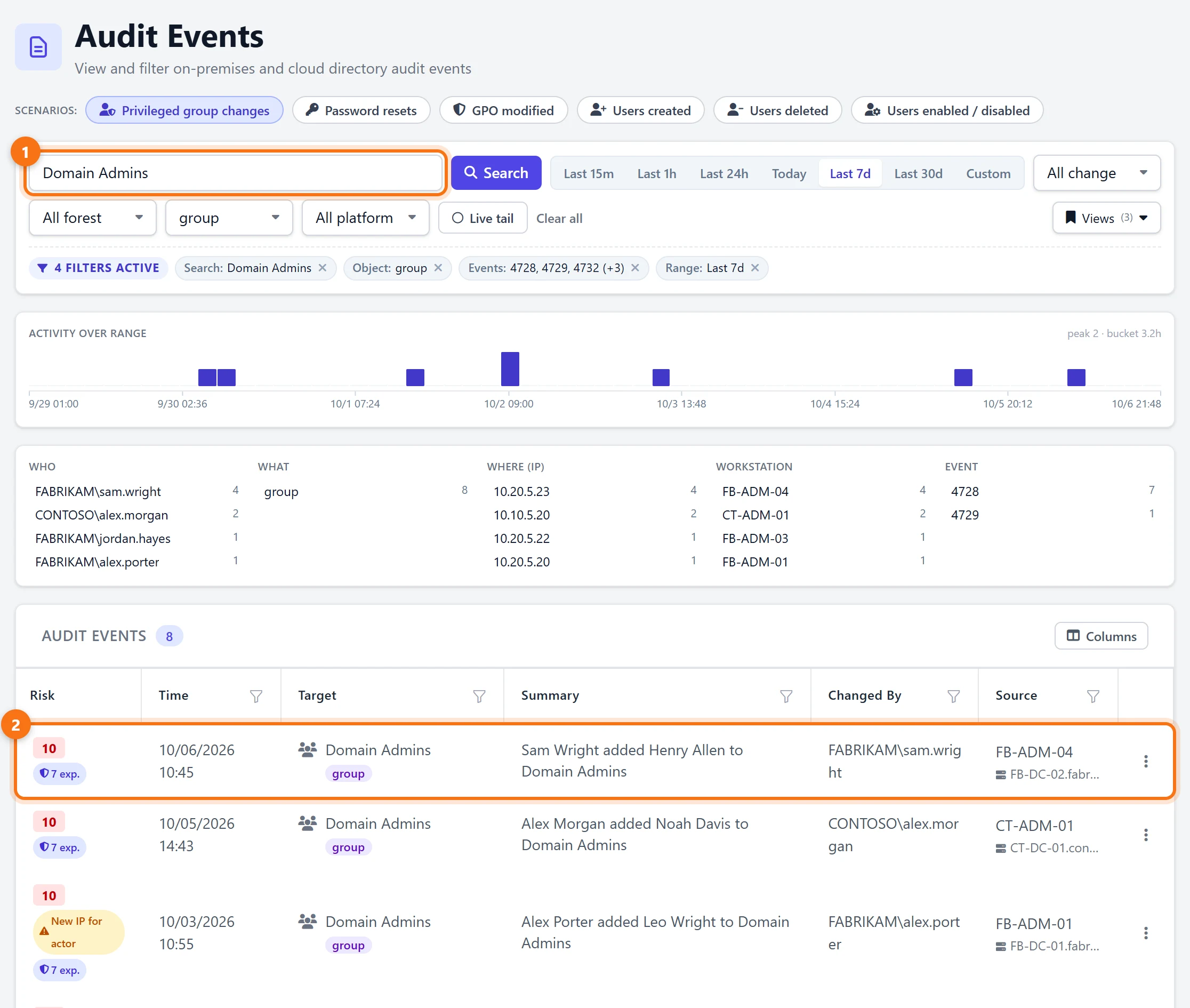
Two things stand out before you click anything. Every Domain Admins change carries the highest risk score, and some are flagged New IP for actor, meaning the admin made the change from an IP address not previously seen for them.
2Open the change to see who, when and where
Click the row. The summary answers the original question in one view: the account that made the change, the domain controller that recorded it, the source IP and workstation, how the admin connected, and the membership value before and after.
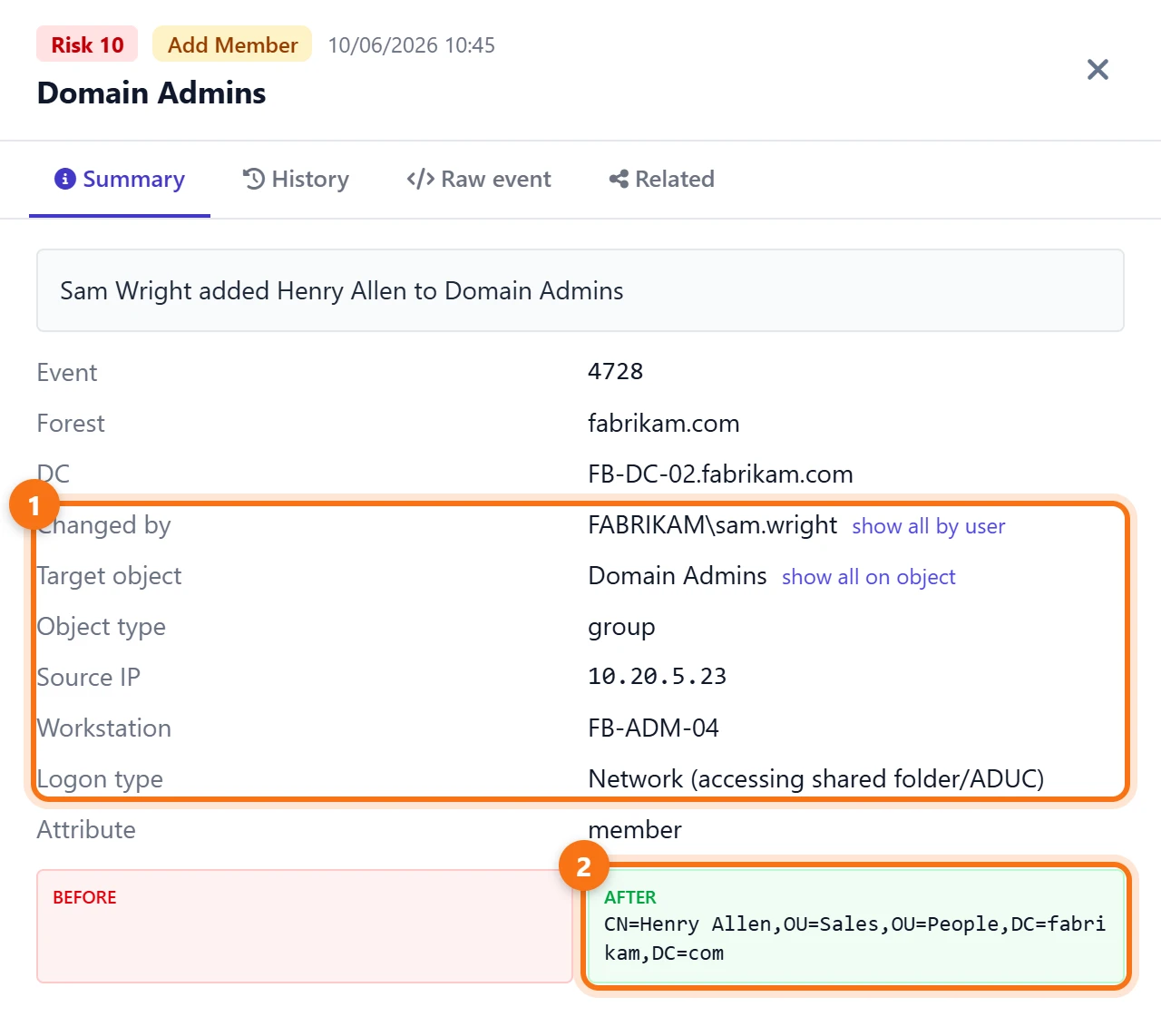
The workstation and IP are already joined to the change, so there is no hunting through logon events to work out where it came from. Show all by user lists everything else Sam Wright has changed, which is usually the next question.
3Check what else has happened to the group
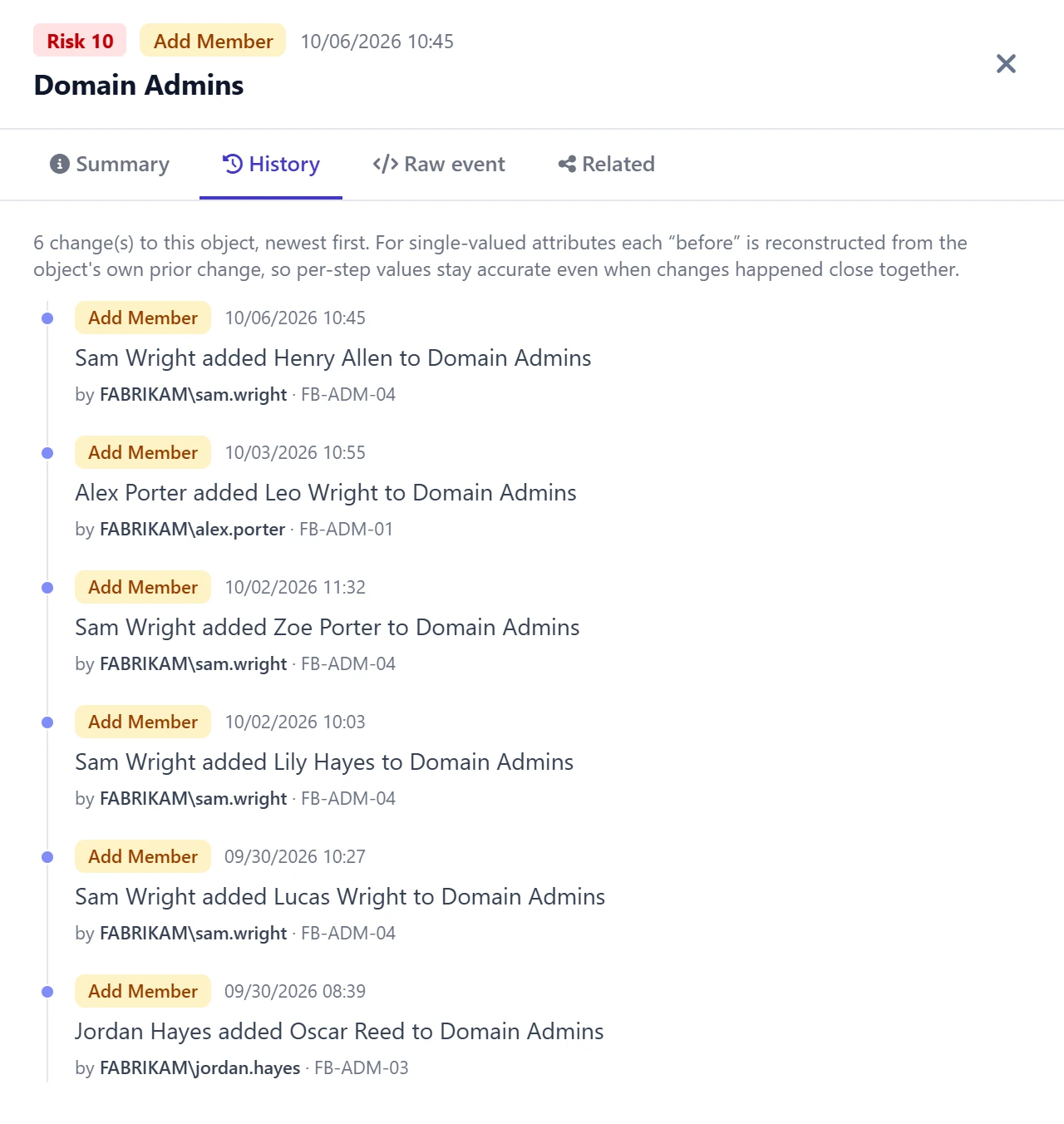
The History tab shows every recorded change to Domain Admins, newest first. In the demo it shows six additions in a week, four of them by the same admin from the same workstation. A single addition may be routine. A pattern like this deserves a conversation.
See the risk the change created
Knowing who made a change is half the job. The other half is knowing what it means for your security. Active Identity Guardian re-evaluates the directory against its exposure rules on a schedule (every 30 minutes in the demo), so the new membership doesn't sit unnoticed.
4The new exposure appears on its own
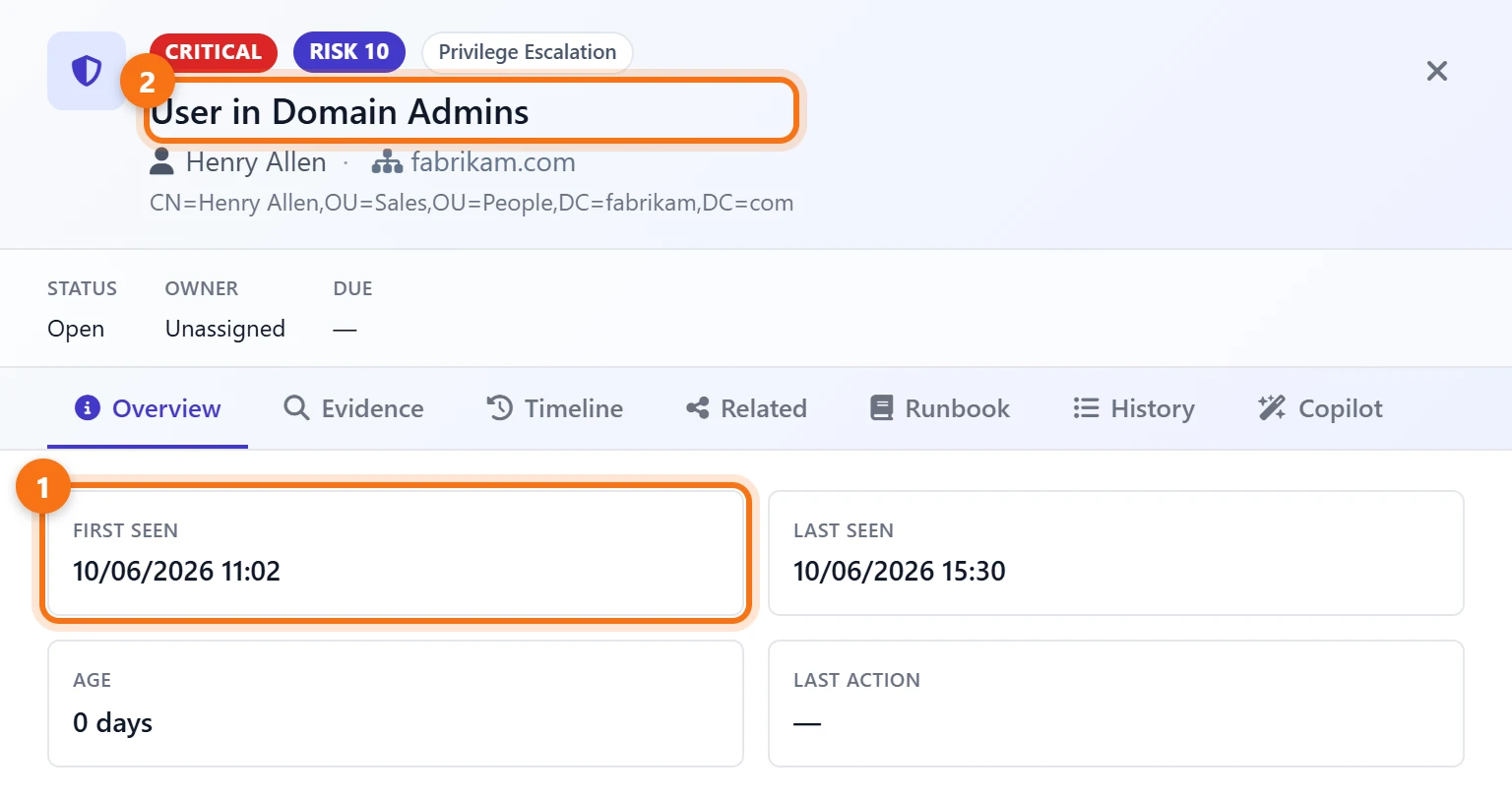
At the next evaluation, 17 minutes after the change, Henry Allen appeared under Exposures with a critical User in Domain Admins finding. It is open and unassigned, ready for someone to take ownership and set a due date.
5Check exactly why it was flagged
The Evidence tab shows the attribute the rule matched and a snapshot of the account at the moment it was detected, so the finding can be checked rather than taken on trust.
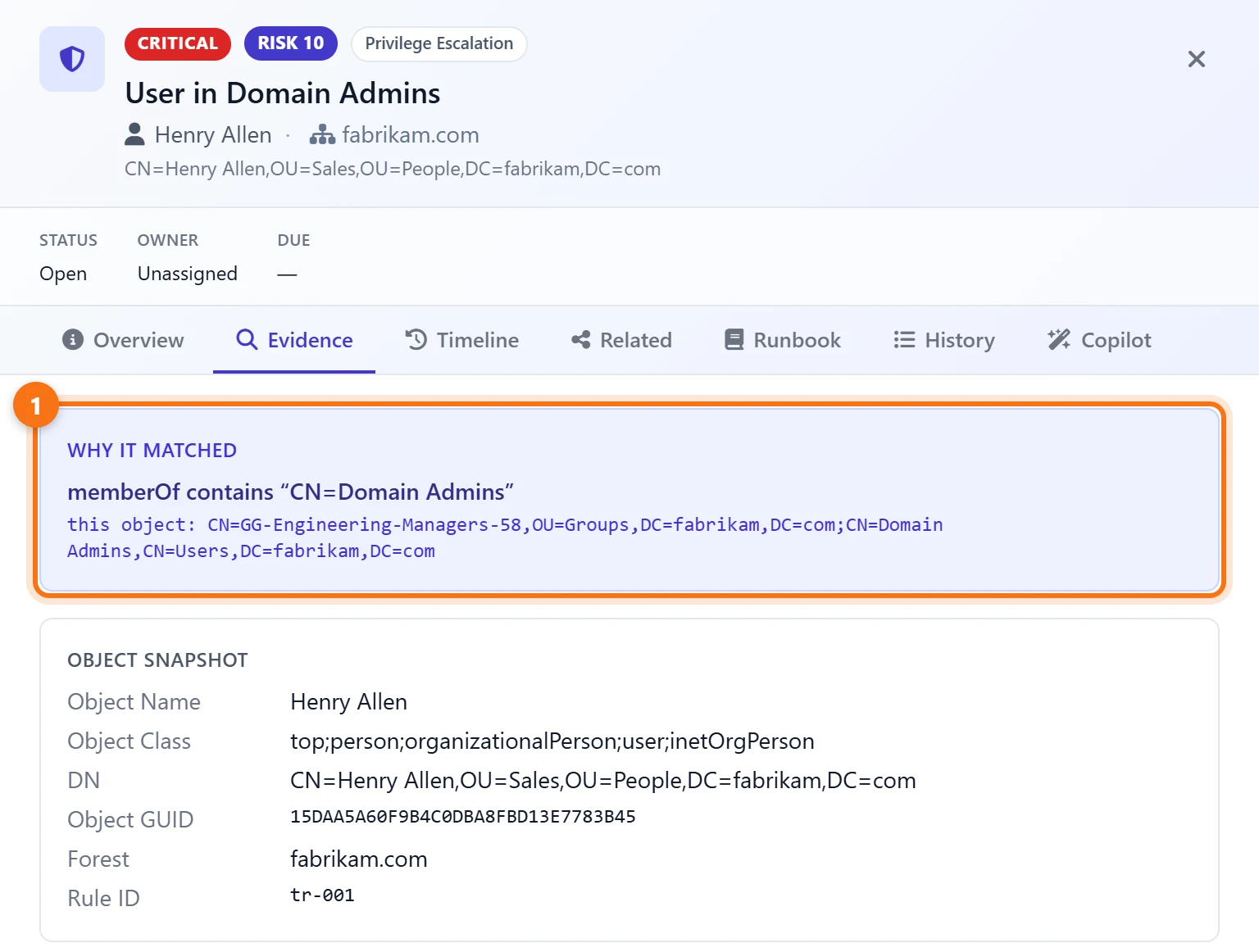
memberOf now includes Domain Admins.6Review every Domain Admins member in one place
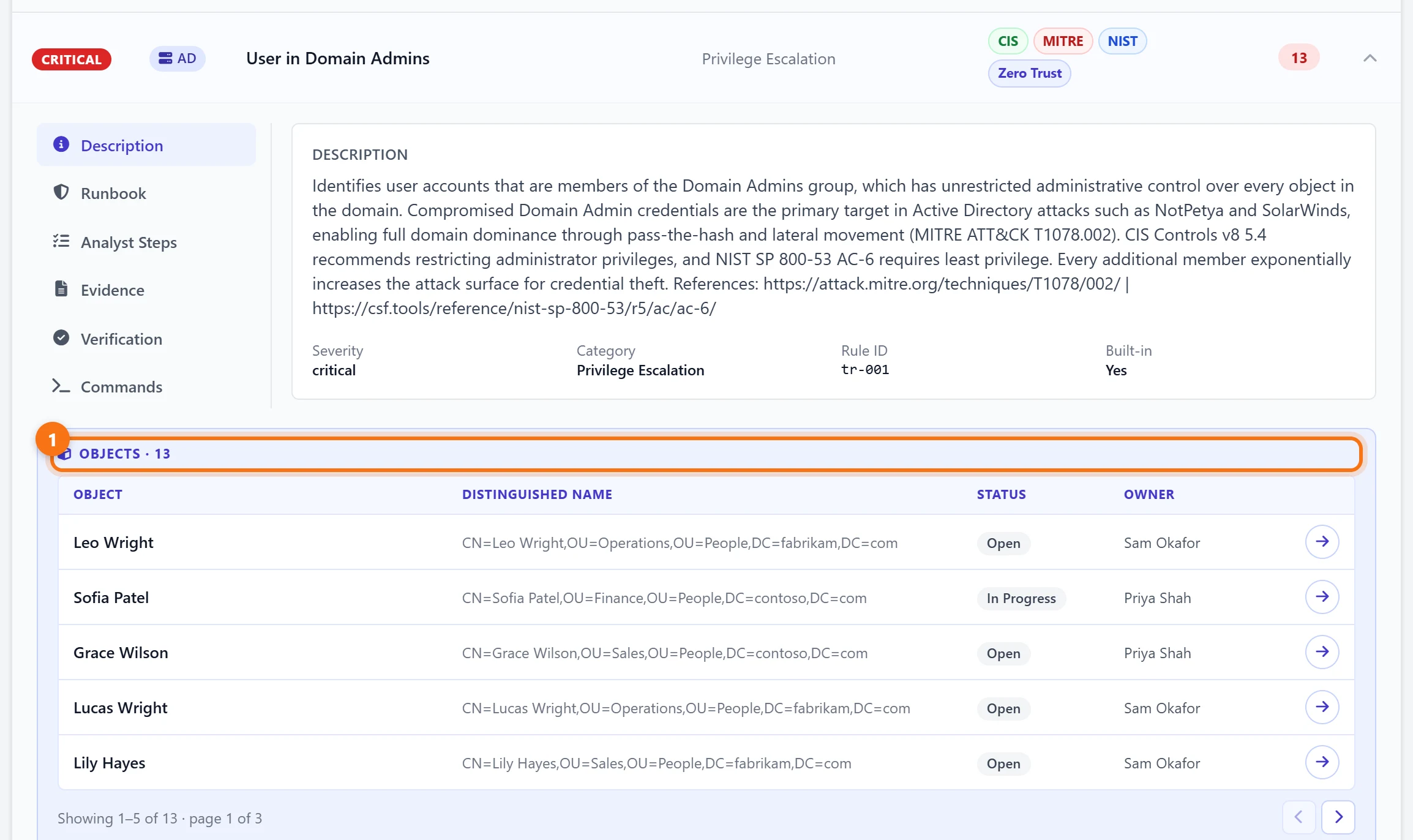
Expand the User in Domain Admins rule to see every flagged member across all your forests, with owner and status for each. The rule also explains the risk, maps it to MITRE ATT&CK, NIST and CIS, and comes with a runbook and verification steps.
7Get told next time
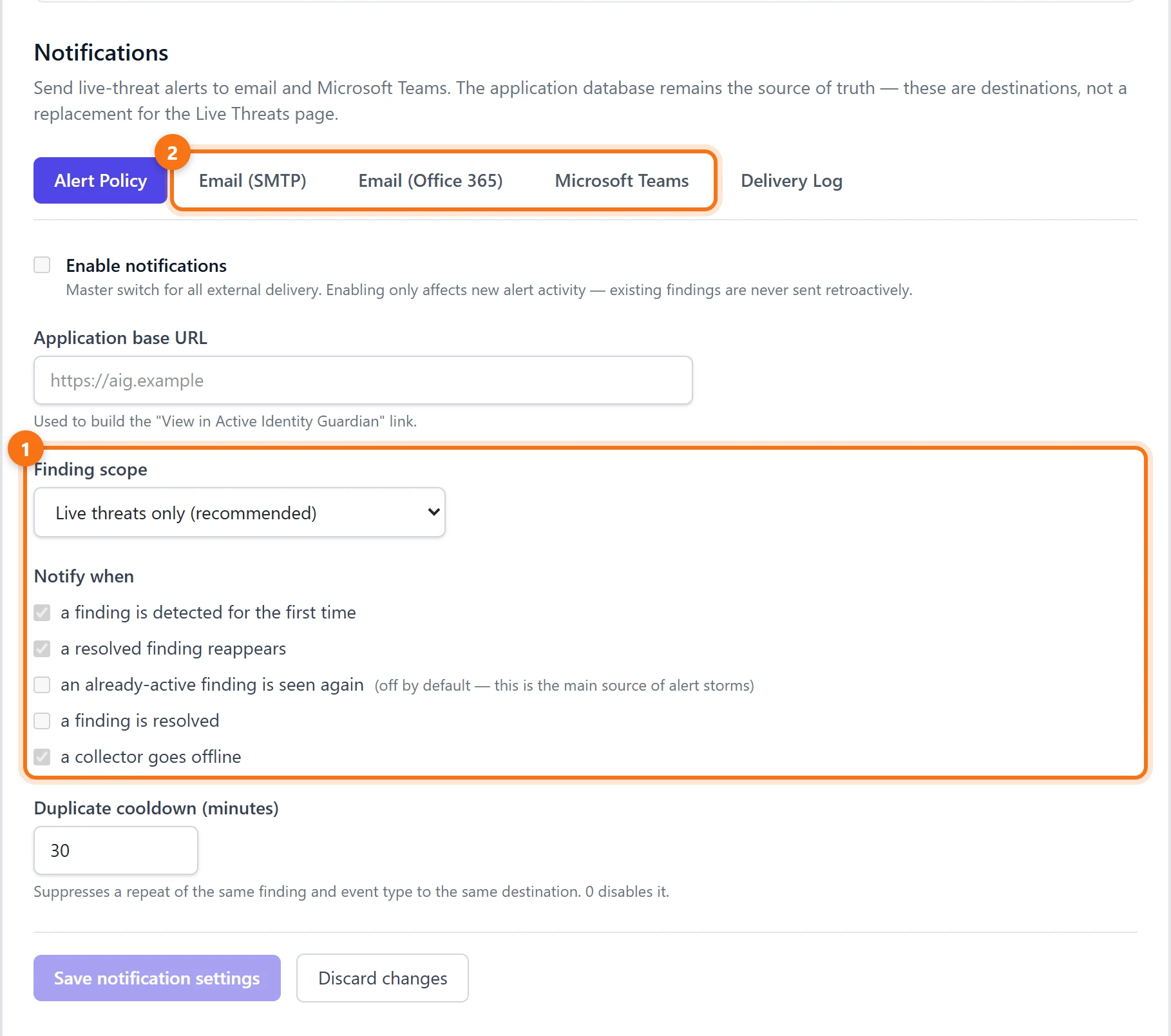
Under Settings > Notifications, findings can be sent to email (SMTP or Office 365) and Microsoft Teams. Set the finding scope to All findings and keep a finding is detected for the first time ticked, and the next unexpected Domain Admins member reaches your inbox or Teams channel after the next evaluation, instead of weeks later.
What to do next
- Confirm the change. Ask the admin who made it, and check it against a change request. Now you know who, when and from where, that is a short conversation.
- Remove what isn't needed. If the membership wasn't approved, take the account out of Domain Admins and review what it could reach while it was there.
- Keep the group small. Day-to-day user accounts shouldn't hold domain-wide admin rights. Use separate administrative accounts and grant the narrowest rights that do the job.
- Make it someone's job. Assign the finding an owner and a due date, so it is tracked to closure instead of forgotten.
Summary
- A new Domain Admins member is recorded only on the domain controller that handled the change, and often without the machine it came from.
- In Active Identity Guardian, one search shows every change to the group across all domain controllers and forests, with who, when, the source IP and workstation, and before-and-after values.
- The same change raises a critical exposure at the next evaluation, so the risk is tracked with an owner until it is fixed, and notifications can send it straight to email or Microsoft Teams.
Try it yourself
Everything above comes from the Active Identity Guardian demo, which runs on synthetic data and is read-only. Open the same view and click through it, with no sign-up.
Written by